Mac Mail OSX 10.11 El Capitan IMAP SSL
This guide provides instructions for configuring Mac Mail Mail, Mac OS X's built in email application, offers an elegant user interface that makes it easy to manage all of your email from a single, ad-free inbox, even when you're not connected to the Internet.
http://www.apple.com/support/mail/ to access your Webnames.ca hosted email account via IMAP Internet Message Access Protocol: IMAP connectivity results in your email client downloading email from our mail server to your computer, however a copy of the email is retained on our mail server until such time that you delete the email from your computer. using SSL By utilizing SSL, the email session between your email client and our email server will be encrypted. The use of Secure Mail is recommended for all customers who access the Internet over a open shared network such as a public wireless hot-spot, or via a cellular provider's mobile network.. The guide assumes that email services have been purchased, and that email addresses have been created in the email administration interface. http://mailadmin.webnames.ca Use postmaster@ account credentials to access.
Mail, Mac OS X's built in email application, offers an elegant user interface that makes it easy to manage all of your email from a single, ad-free inbox, even when you're not connected to the Internet.
http://www.apple.com/support/mail/ to access your Webnames.ca hosted email account via IMAP Internet Message Access Protocol: IMAP connectivity results in your email client downloading email from our mail server to your computer, however a copy of the email is retained on our mail server until such time that you delete the email from your computer. using SSL By utilizing SSL, the email session between your email client and our email server will be encrypted. The use of Secure Mail is recommended for all customers who access the Internet over a open shared network such as a public wireless hot-spot, or via a cellular provider's mobile network.. The guide assumes that email services have been purchased, and that email addresses have been created in the email administration interface. http://mailadmin.webnames.ca Use postmaster@ account credentials to access.
If you have never used Mail on your Mac before, you will be asked to create an email address as soon as you launch the program, as indicated in the screenshot below. If you already have a mail account on your computer, you will need to use these steps:
- Open Mail
- Click on the Mail menu, and then select Accounts....
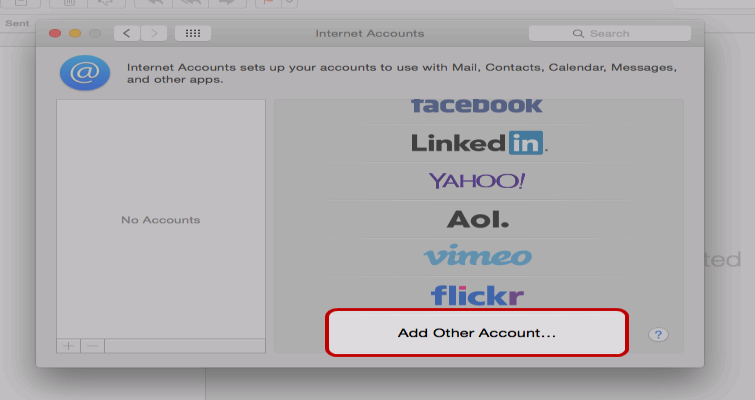
- In the new window that opens, scroll to the bottom of the list of available types and choose Add Other Account...
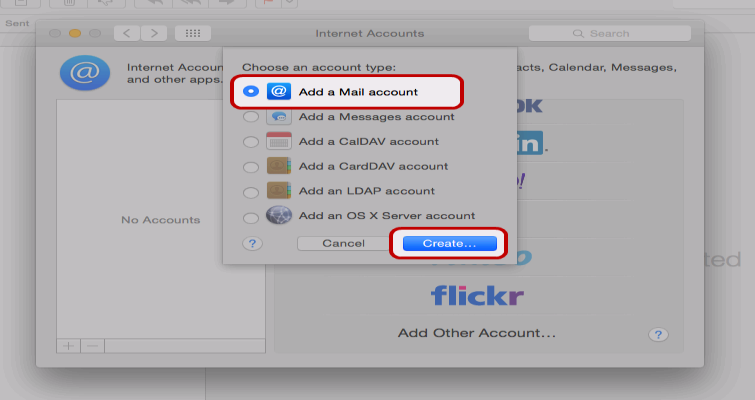
- In the new window that appears, select Add a Mail account and click Create...
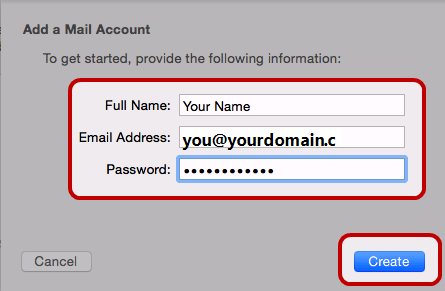
- In the Add a Mail Account window, enter the following information:
- Full Name: Your name, as you would like it to appear to recipients of your emails
- Email Address: Full Email Address
- Password: Your Password
- Click Create
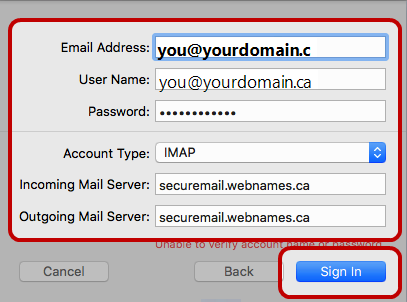
- After clicking Create, the interface will return a message, Unable to verify account name or password
- Enter the following:
- Incoming Mail Server: securemail.webnames.ca
- Outgoing Mail Server: securemail.webnames.ca
- Click Sign In
- Wait while the configuration process completed. Note that this process can take up to 4 minutes to complete.
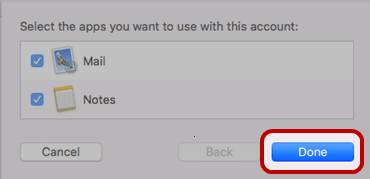
- Click Done to begin using your email account